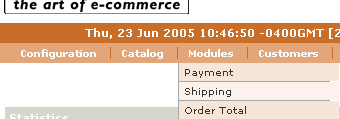
This will be a step by step install
1. open your admin in your browser.
2 go to the admin->modules->payment screen
3 Highlight the line that says paypal
4 hit the button on the right that says install 
5 now hit the edit button
From this point we are going to be adding important information and it must match EXACTLY with the information in paypal and visa versa
( Note: I am assuming that you have Zen Cart as a root install)
First box will be email  this needs to be filled in with
the primary email address from paypal.
this needs to be filled in with
the primary email address from paypal.
Next is setting up Currency, ( Selected Currency Is Suggested)
Payment Zone Leave as --none--
Set Pending Notification status ( your preference but default is suggested )
Set Order Status ( your preference but default is suggested )
Set Refund Order Status ( your preference but default is suggested )
Sort order of Display ( this is used to determine where paypal will show in relation to other payment modules.
Hit the update button
This Help system was created using a trial version of RoboHelp. Files generated with the trial version are intended for evaluation purposes only and may not be used or distributed for any other purpose.